AI Agent Development
Computer-Using AI Agents: How AI Automates Browsers, Apps and Business Software
October 15, 2026
October 15, 2026
It's 4:45 p.m. on a Friday. You're copying numbers from an email into a spreadsheet, then into a CRM, then into an invoice tool. Again. Your coffee went cold an hour ago.
What if an AI did that part for you?
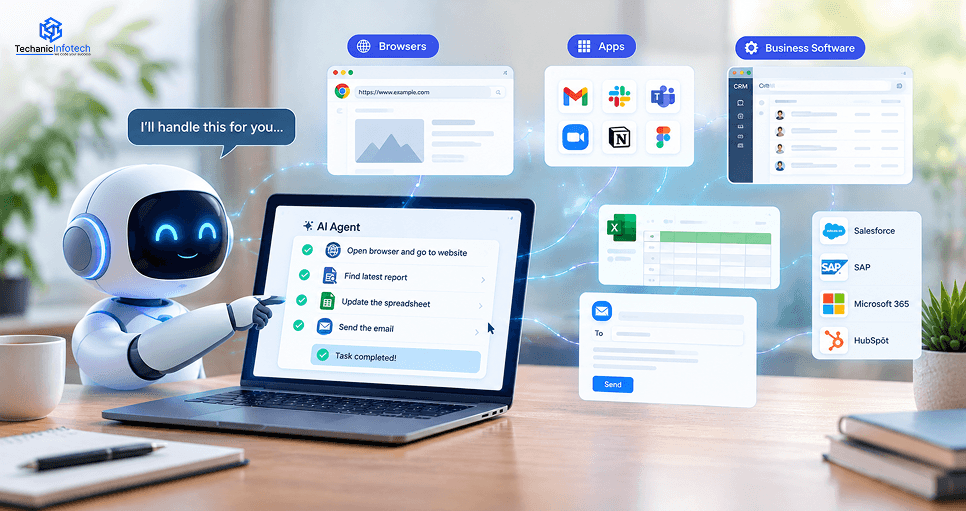
That's what computer-using AI agents do. They look at your screen, click buttons, type text, and finish tasks the way a person would. In this guide, you'll learn how they work, where they help, and where they still fall short.
A computer-using AI agent is an AI that can use a computer as you do. It sees the screen. It moves the mouse. It types on the keyboard.
Think of a new assistant sitting at your desk. You say, "Pull last month's sales numbers and put them in this sheet." They open the right apps and get it done. A computer-using AI agent does the same thing; only it's software.
You'll also hear the term computer-using AI. It means the same idea: AI that can operate a computer, not just talk about one.
A normal chatbot only talks. Ask it how to fill out a form, and it gives you steps. Ask an agent, and it fills it out.
|
Key Differences |
Normal Chatbot |
Computer-Using AI Agent |
|
Main job |
Answers questions |
Does tasks |
|
Can it see your screen? |
No |
Yes. |
|
Can it click and type? |
No |
Yes. |
|
Example |
"How do I book a flight?" |
Books the flight |
AI agents use screens, mouse clicks, keyboard input, and reasoning to complete digital tasks inside browsers and apps.
The agent first turns your request into a clear task.
For example, you might say:
“Find all unpaid invoices from this week and enter them into our accounting software.”
The agent breaks that request into smaller actions. It needs to find the right invoices, collect the needed details, open the accounting system, enter the data, and confirm the updates.
This goal-setting step matters because the agent needs to know what success looks like before it starts clicking around.
Next, the AI looks at the computer interface. It may use screenshots, computer vision, or other interface information to understand what is visible.
It can identify things such as the following:
Buttons and menus
Text fields and forms
Tables and spreadsheets
Links and icons
Error messages
Open windows and application screens
For instance, if the accounting system moves the “New Invoice” button, the agent can look at the new screen and find where it moved instead of blindly clicking the old location.
Once the agent understands the screen, it decides what to do next.
It might reason like this:
Find invoice → Open accounting software → Select customer → Enter amount → Save → Check the record.
The important part is that the agent can make decisions between actions. It does not always need a human to provide every single click.
This is also where the agentic development lifecycle becomes important. Good agent systems are tested around planning, action, monitoring, permissions, and recovery instead of being treated like simple automation scripts.
Now the agent acts on the computer.
It can perform actions such as:
Move the cursor
Click buttons
Type into fields
Scroll through pages
Select options
Open applications
Copy and paste information
Upload or download files
After taking an action, the agent checks what happened.
Did the invoice save?
Did an error message appear?
Did the website move to another page?
Is the customer record actually updated?
This verification step is a big deal. Without it, an agent could keep clicking and typing while the original task had already failed.
A good computer-using AI agent works more like:
Act → Observe → Confirm → Continue
rather than:
Click → Click → Click → Hope for the best.
Computers rarely behave perfectly. Websites time out. Buttons move. A required field gets missed. An application suddenly logs the user out.
When this happens, the agent can stop, understand the new state, and choose another action.
For example, imagine the accounting system rejects an invoice because the customer ID is missing. Instead of continuing, the agent can read the error, return to the customer record, find the missing ID, and try the step again.
Most people meet this technology in a web browser first. That makes sense. So much of our work lives there.
Browser AI agents can open websites, read pages, and take action on them. Here's what that looks like.
You ask a question. The agent opens several sites, reads them, and brings back a summary. It's like sending an intern to do research. A fast one who never asks for a lunch break.
Forms are boring. Everyone knows it. An agent can fill out the same form fifty times without a sigh. Think sign-ups, applications, and order forms.
This is where it gets useful. Most business work happens behind a login: your dashboard, your ad account, your vendor portal. An agent can work inside these pages once you give it access.
But go slow here. Logged-in pages hold private data. We'll cover safety in a minute.
People mix these up all the time. They're not the same.
|
Browser Automation |
Computer-Using AI |
|
Follows fixed rules |
Can reason about the screen |
|
Best for predictable workflows |
Better for changing interfaces |
|
Often depends on selectors or scripts |
Can use visual interface elements |
|
Limited decision-making |
Can plan and adjust actions |
Browsers are only part of the story. Most companies run on apps. And computer-based AI can work inside many of them.
Think about the tools in a normal office:
Spreadsheets
CRM tools
ERP systems
Accounting software
Design tools
Email apps
Old legacy programs
Internal business tools
If it has a screen, an agent can often learn to use it.
An agent can open a report, find a number, and pull it out. Say you need last quarter's top ten customers. The agent opens the CRM, sorts the list, and copies the names. No digging for you.
This is the classic job. New customer? Add the record. Deal closed? Change the status. Phone number changed? Fix it. Small tasks, but they eat hours.
Many teams do this by hand every day. They copy from one app and paste into another. Over and over. It's the digital version of carrying buckets of water between two barrels.
Agents are good at this because they don't need the apps to "talk" to each other. They just use both, as you do.
This might be the strongest use case of all.
Some old software has no API. No plug-in. No easy way for other tools to connect. It was built in 2008, and it only works with a mouse. Many companies still depend on it.
Developers can't easily connect new tools to programs like that. But GUI AI agents don't need a connection. They just use the screen.
Current documentation from GitHub makes the same point: computer use can help with GUI-only and legacy software where an API or command-line tool doesn't exist.
For many teams, that's a huge win. They don't have to replace old software to get new speed.
So far, this sounds cool. Now let's talk about money and time. This is where the technology goes from "neat demo" to real business value.
AI agents for business automation can take over the clicking-and-typing part of many jobs. Here's where they fit best.
Sales teams live in the CRM. And they hate updating it. An agent can:
Update lead status
Find customer records
Move deals to the next pipeline stage
Prepare follow-up tasks
Operations teams juggle orders, stock, and reports. An agent can:
Update order status
Check inventory levels
Log purchase records
Pull weekly reports
Finance work needs extra care. An agent can help with:
Entering invoice data
Supporting bank reconciliation
Collecting reports
But here's the catch. Support and automation aren't the same as decision-making. An agent can type the numbers in. It shouldn't decide who gets paid or approve a big transfer on its own. Keep a person in charge of money decisions.
Support teams drown in tickets. An agent can:
Sort tickets by topic
Pull up order details
Update ticket status
Draft replies for a person to review
HR handles private data, so go carefully. Agents can help with:
Updating employee records
Running onboarding steps
Processing documents
Notice the last column. Not every task needs the same level of checking. Match the oversight to the risk.
Some businesses want more than an off-the-shelf tool. They need an agent built around their own software and rules. That's when many teams talk to an AI development company that can design and test a custom setup. It's worth knowing the option exists, even if you're not ready yet.
Fair question. Is this worth the effort? Here's what people actually gain.
Some tasks are the same every single day. Same clicks. Same fields. Agents don't get bored. And they don't make "I'll finish this tomorrow" promises.
Most real jobs touch more than one tool. Agents move between them without extra setup. That's hard for traditional automation.
Typing the same data again and again leads to typos. We've all done it. Agents cut down that risk, though they aren't perfect either. Check their work early on.
Remember that old program nobody wants to touch? The agent can use it as is. No rebuild needed.
Work that waits in someone's inbox slows everything down. An agent can start right away, at any hour. Speed adds up.
Rebuilding systems costs a lot and takes a long time. Agents let you add new abilities on top of what you already have. Think of it as adding a new floor, not tearing down the house.
This one matters most to me. Nobody dreams of becoming a professional copy-paster. When the dull work goes away, people can talk to customers, solve problems, and think. The best thing about AI agents for business automation is that they give people their time back.
Let's pull it all together. Here's a simple map of what these agents handle today.
|
Area |
What the agent can do |
|
Data entry and transfer |
Copy, paste, and enter records across tools |
|
Research and information gathering |
Search sites, read pages, collect facts |
|
Customer service workflows |
Sort tickets, look up orders, draft replies |
|
Sales operations |
Update leads, log calls, prepare follow-ups |
|
Administrative tasks |
Schedule meetings, file documents, fill forms |
|
Software testing |
Click through apps to find broken buttons or pages |
|
Back-office automation |
Process invoices, update records, build reports |
|
Cross-application workflows |
Move one task through many apps from start to finish |
That last row deserves a closer look. When one agent isn't enough, teams sometimes use several agents that each handle one part of a job. If that sounds like your situation, read up on how to build multi-agent systems. It's a bigger project, but it's where a lot of the action is heading.
I could stop at the good news. But that wouldn't help you. So let's be honest about where these tools struggle.
The agent reads a screenshot, then guesses where to click. On a crowded screen, tiny buttons and tight menus cause misclicks. Hitting "Delete" instead of "Save" is a small slip with a real cost, especially inside a CRM.
Each screenshot and model call uses tokens, and tokens cost money. Long tasks with many retries add up fast. Estimate your cost per task before you scale. Teams that offer AI development services can help you build that budget early.
Vision-language models sometimes report a step as finished when it never happened. The agent says "Done!" while the form sits half-filled. Always check the final screen, not just the agent's own summary.
Websites and apps tweak their layouts all the time. Experts call this UI drift. A button moves, a menu gets renamed, and the agent that worked yesterday gets lost today. Agents adapt better than old scripts, but not always.
Every step needs a screenshot, a model decision, and an action. That loop adds delay. For one short, familiar task, a trained employee may still finish faster. Agents shine on volume, not on a single quick job.
Two-factor sign-ins, one-time codes, and session timeouts stop software cold. These checks protect your accounts, so they should. Plan for a person to approve logins, or use a secure credential vault instead of typed passwords.
CAPTCHA tests exist to separate humans from bots. Agents often get blocked, and they shouldn't try to beat them. Choose workflows where an approved access route already exists, like an official API or partner login.
Some sites ban automated tools in their terms of service or robots.txt file. Ignoring those rules can lock your account or invite legal trouble. Read the rules first. Ask permission when the stakes are high.
A person remembers what happened earlier in the day. Agents often lose track of past steps, open tabs, or unsaved changes. Strong AI agent memory architecture gives an agent short-term and long-term memory, so it can follow its own trail.
Yes, if you set it up the right way. No, if you hand over the keys and walk away.
Think of it like letting a new hire use your computer. You'd give them access to what they need. You'd check their first few tasks. You wouldn't tell them your bank password on day one.
Give only the access it needs: If the job is updating a spreadsheet, don't open your email, bank, and files too. Less access means less damage if something goes wrong.
Keep a human checking important work: Sending money, deleting files, or emailing customers? A person approves first. Every time.
Never share passwords carelessly: Use a separate account for the agent when you can. Use secure sign-in tools instead of typing passwords into prompts.
Other smart moves: run the agent in a test setup first, turn on activity logs so you can see what it did, and set limits on what it can spend or delete.
|
Do |
Don't |
|
Start ith low-risk tasks |
Give it access to everything |
|
Review iwmportant actions |
Let it send money alone |
|
Use a separate account |
Paste passwords into chats |
|
Keep activity logs |
Run it unwatched on day one |
This space moves fast. New tools show up almost monthly. Here are the names you'll see most often.
|
Tool |
Best for |
Easy to use? |
Price |
|
ChatGPT agent (OpenAI) |
Everyday users, browser tasks |
Yes |
Part of paid plans |
|
Claude computer use (Anthropic) |
Developers and teams testing desktop tasks |
Medium |
Usage-based |
|
Gemini computer use (Google) |
Developers building browser agents |
Medium |
Usage-based |
|
Microsoft Copilot agents |
Teams already using Microsoft 365 |
Yes |
Varies by plan |
|
Stagehand |
Developers who want control |
Medium |
Open source, plus model costs |
|
Browser Use |
Developers building browser agents |
Medium |
Open source, plus model costs |
Planning something custom? Ask early about the AI agent app development cost. It depends on how many apps the agent touches and how much checking you need. Better to know that number before you start than after.
You don't need a big plan. You need one small win.
Pick one small task first: Choose something boring and low-risk. Filling one form. Building one weekly report. Not "run my whole business."
Test it safely: Use dummy data first. Fake names, fake numbers. Watch what the agent does, step by step. You'll spot problems fast.
Grow slowly: Once it works five times in a row, add another task. Then another. Slow growth beats a big mess.
Nobody has a perfect crystal ball. But the direction looks pretty clear.
We started by chatting with AI. Now we ask it to do the work. Multimodal models can read a screen, plan a step, and click, so "tell it, and it's done" will feel normal soon.
Autonomous AI agents will move from answering questions to finishing tasks inside real software.
Agents will handle jobs that stretch across many tools, like email to CRM to billing. Better planning, memory, and error recovery mean less hand-holding.
Today's agents slip on long tasks, so expect progress here to come in steady steps, not one big leap.
Big companies need audit logs, approval steps, and clear rules.
Tools are getting better at fitting into single sign-on, ERP systems, and compliance checks like SOC 2. That's when AI agents for business automation stop being side projects and become part of daily operations.
The best setup won't be one or the other. When a clean API or a Model Context Protocol (MCP) connection exists, the agent uses it.
It's faster, cheaper, and safer. When there's no API, as with legacy software, the agent falls back on the screen. Smart teams will mix both and compare them against old-school RPA tools.
Who is the agent?
What can it touch?
Who approved that action?
Expect firmer answers through OAuth, role-based access control, least-privilege access, and a human in the loop for risky steps. Trust will decide how fast this grows. Teams that can't track what their autonomous AI agents did will hit the brakes.
Computer-using AI agents are no longer a lab experiment. They read screens, click through apps, and finish real work across browsers, CRMs, and legacy software.
Computer use AI isn't perfect. It still misclicks, hits CAPTCHA walls, and loses track of long workflows. That's why human-in-the-loop checks, least-privilege access, and audit logs matter.
Start with one boring, low-risk task and test it with dummy data. Watch the results. Then scale slowly. Your Friday 4:45 p.m. spreadsheet shift might just be the first thing you hand off.
They are AI tools that see your screen, click, type, and scroll to finish tasks in browsers and apps, much like a person would.
A chatbot only answers questions. Computer use AI acts on your behalf, like filling forms, updating a CRM, or moving data between apps.
Yes. GUI-based agents use the screen, so they can operate legacy programs that have no API or plug-in.
They can be, with limits. Use least-privilege access, a separate account, activity logs, and human approval for risky actions.
Not always. Many tools accept plain-English instructions. Custom builds, API links, or MCP setups usually need a developer.
They replace repetitive tasks, not whole roles. People still handle judgment, customer talks, and complex problem-solving.
Common causes are UI changes, CAPTCHAs, slow pages, hallucinated actions, and long workflows where small errors stack up.
It varies. Some tools come with paid plans, while others charge by usage tokens. Longer tasks with retries cost more.


Bharat Sharma is the CTO of Techanic Infotech, bringing deep technical expertise in software architecture, mobile app development, and scalable system design. He leads the engineering team with a strong focus on innovation, performance, and security.